

DIY Ambient TV PC Dream Screen USB LED Strip HDTV Computer Monitor Backlight Addressable WS2812B LED Strip 1/2/3/4/5m Full Set
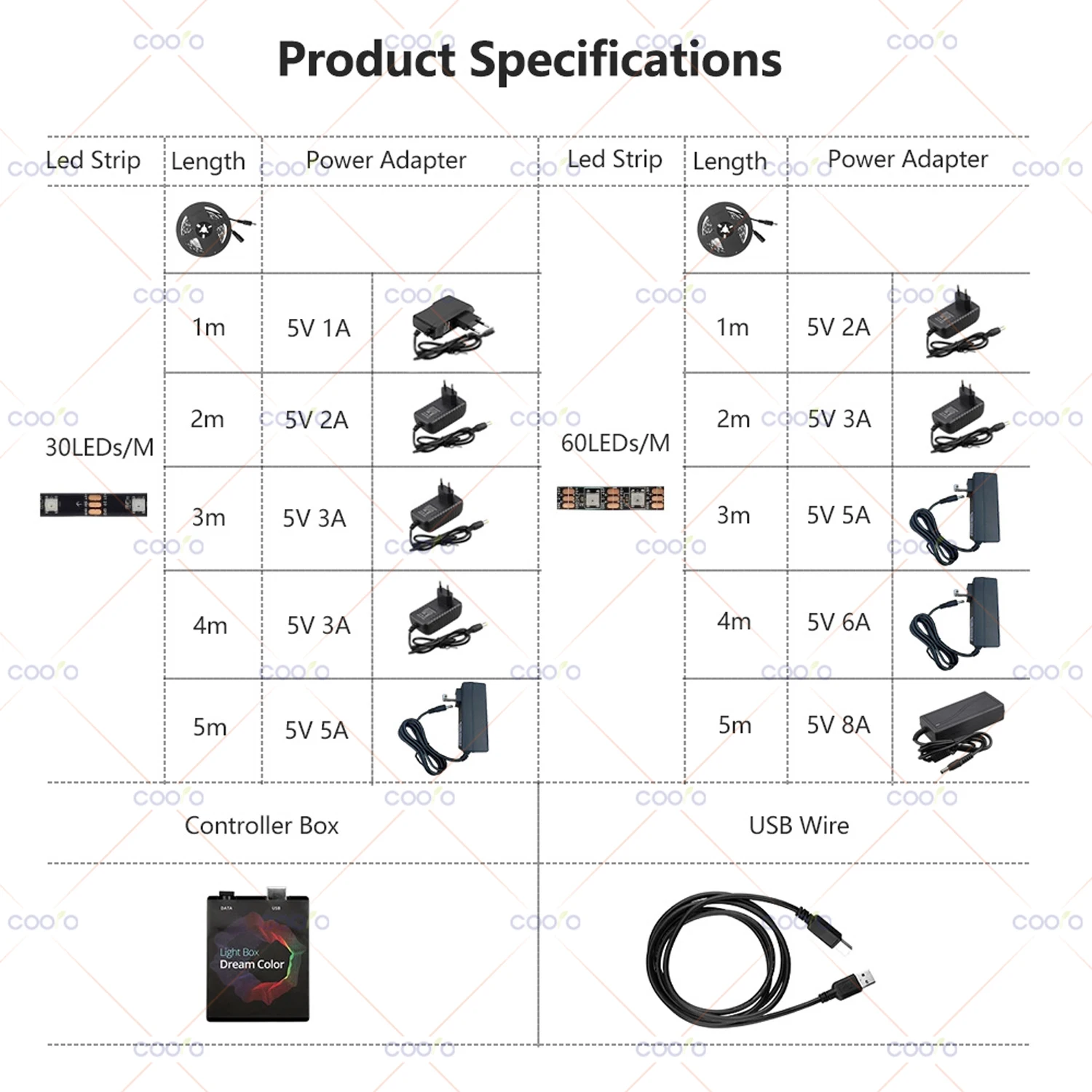
30 LEDs per meter / 1M kit / US Plug
$48.23
Sale price
$48.23
Regular price
$0.00
Skip to product information



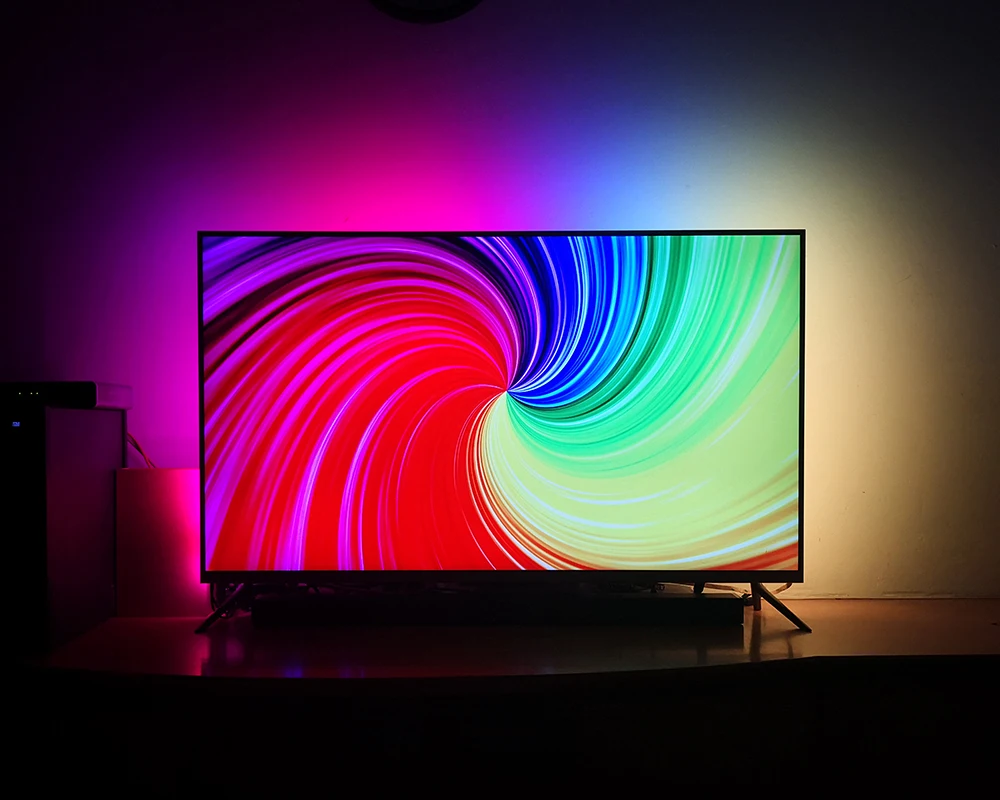
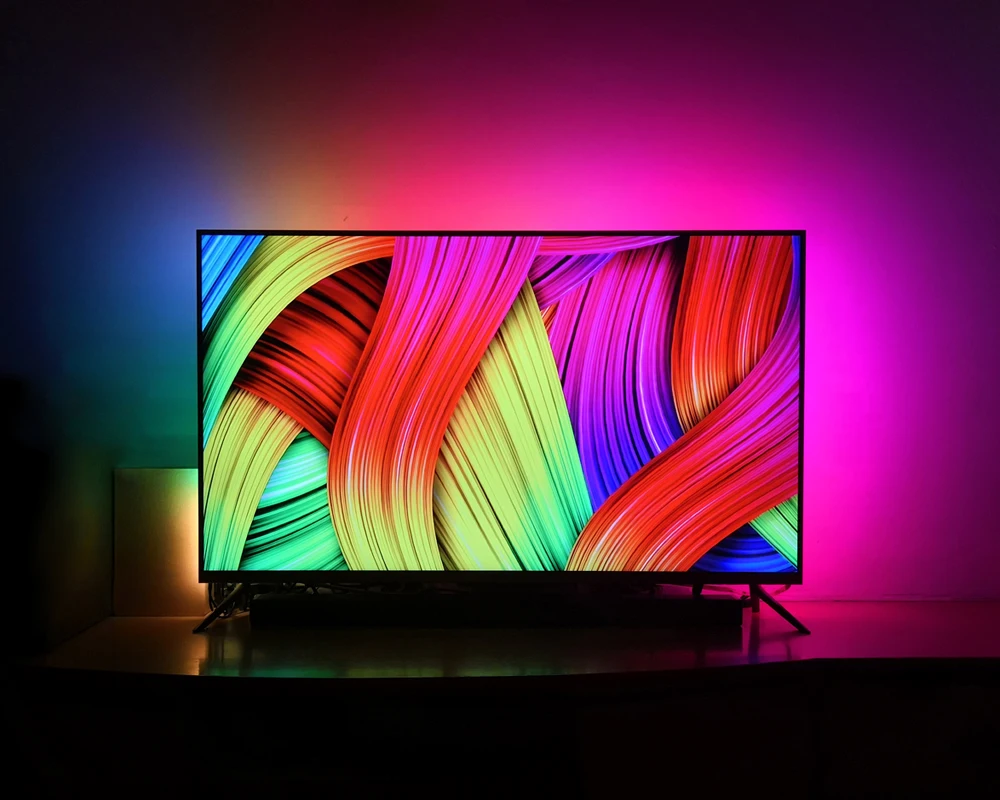


DIY Ambient TV PC Dream Screen USB LED Strip HDTV Computer Monitor Backlight Addressable WS2812B LED Strip 1/2/3/4/5m Full Set
$48.23
Regular price
$0.00
Sale price
$48.23
Description
SPECIFICATIONS
Average Life (hrs): 50000
Brand Name: coolo
Certification: FCC,ce,ROHS,CE
Choice: yes
Color Temp(K): RGB
High-concerned chemical: none
Is Batteries Included: no
Is Smart Device: no
Item Type: Strip
LED Chip Brand: Epistar
LED Chip Model: SMD5050
LEDs Number/M: 30/60
Luminous Flux: 249-2000
Model Number: TV PC Screen Backlight
Nominal Voltage: 12V
Occasion: Living room
Origin: Mainland China
Power Consumption (W/m): 11.52W/m
Power Generation: Always On
Power Source: DC
Specifications (light beads / m): 30/60
Strip type: SMD
Voltage: 5V
Waterproof: No
semi_Choice: yes
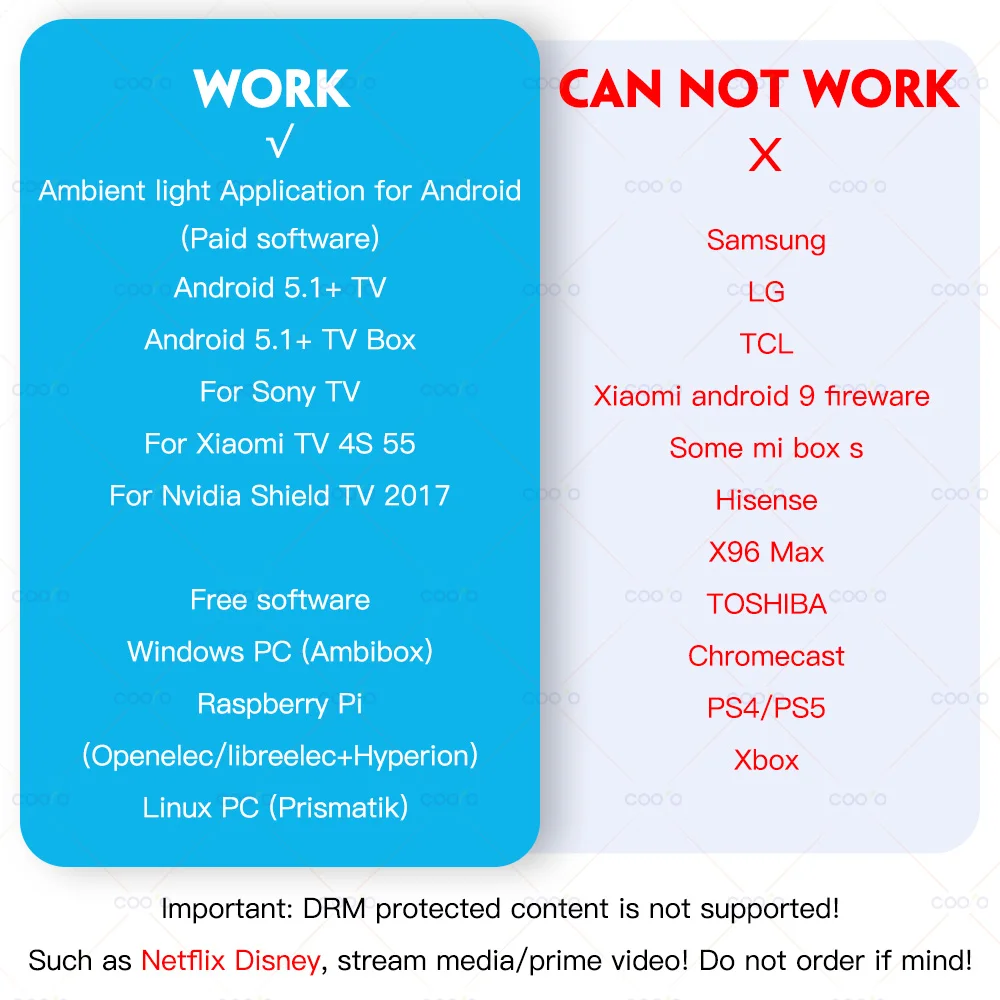
Not compatible with Samsung/LG/TCL/Hisense/X96+!!!
(Some Mi boxes do not work properly and are not recommended)
DRM protected content is not supported!
Note: The backlight only works on Android TV, Samsung/LG not belong to Android Operating System.
If you want to use it with non-Android TV, you must connect an extra Android TV box to your TV first, then can be used with our product.
What software is needed?
Windows: Ambibox or Prismatik (https://drive.google.com/file/d/1aR1z_wcBfGw2ixTBYI01CshD_q8RMxxc/view?usp=sharing)
Raspberry Pi: Openelec/libreelec+Hyperion (https://www.youtube.com/watch?v=kBDaC_c6VfI)
Android TV/TV boxs(Android 5.1 or above): Ambient light Application for Android (Paid software)
(Or, the video signal of the computer is output to TV, TV as monitor.)
(Or, install or run Openelec/libreelec+Hyperion on your TV/TV box.)
It is important to know!
The analog TV signal is not processed by the Android OS level, so the backlight application will not work with regular TV channels. The backlight works only with Android OS applications that do not use protected content. 4K performance depends only on your hardware.
Unfortunately, programs such as YouTube and Netflix use protected content (DRM), this application has no ability to work with them. In order to make it work you should use the special client. For example SmartYoutube.
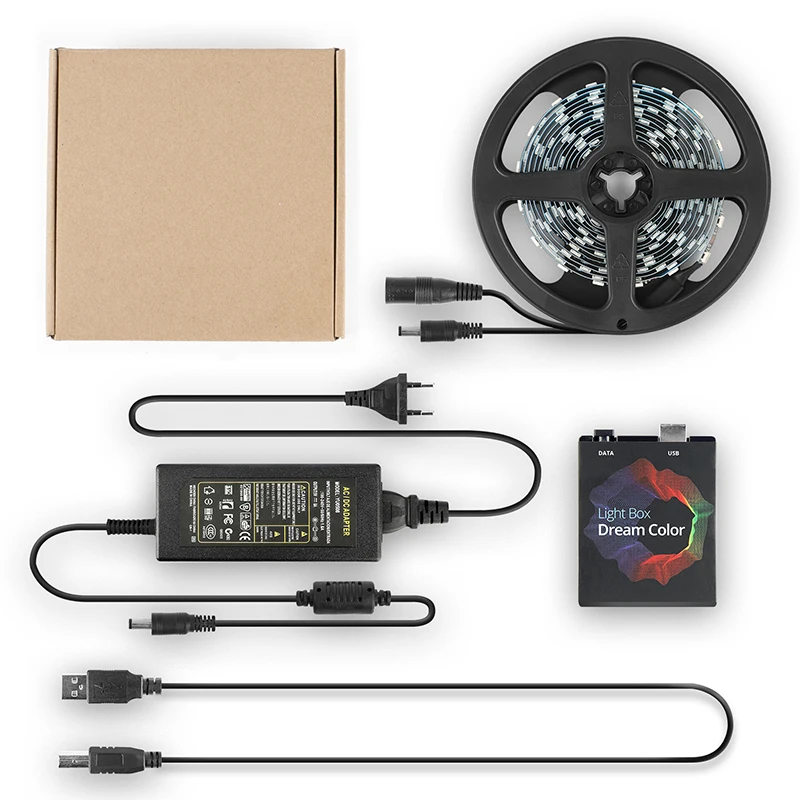
1 * LED Strip
1 * Light Box
1 * USB Cable
1 * Power Adapter
1 * Manual
Warm Prompt:
The setup of this item is a bit complicated, if the product does not work properly, please make sure to contact us first, instead of opening a dispute or writing negative feedback directly, we will definitely help you solve the problem!
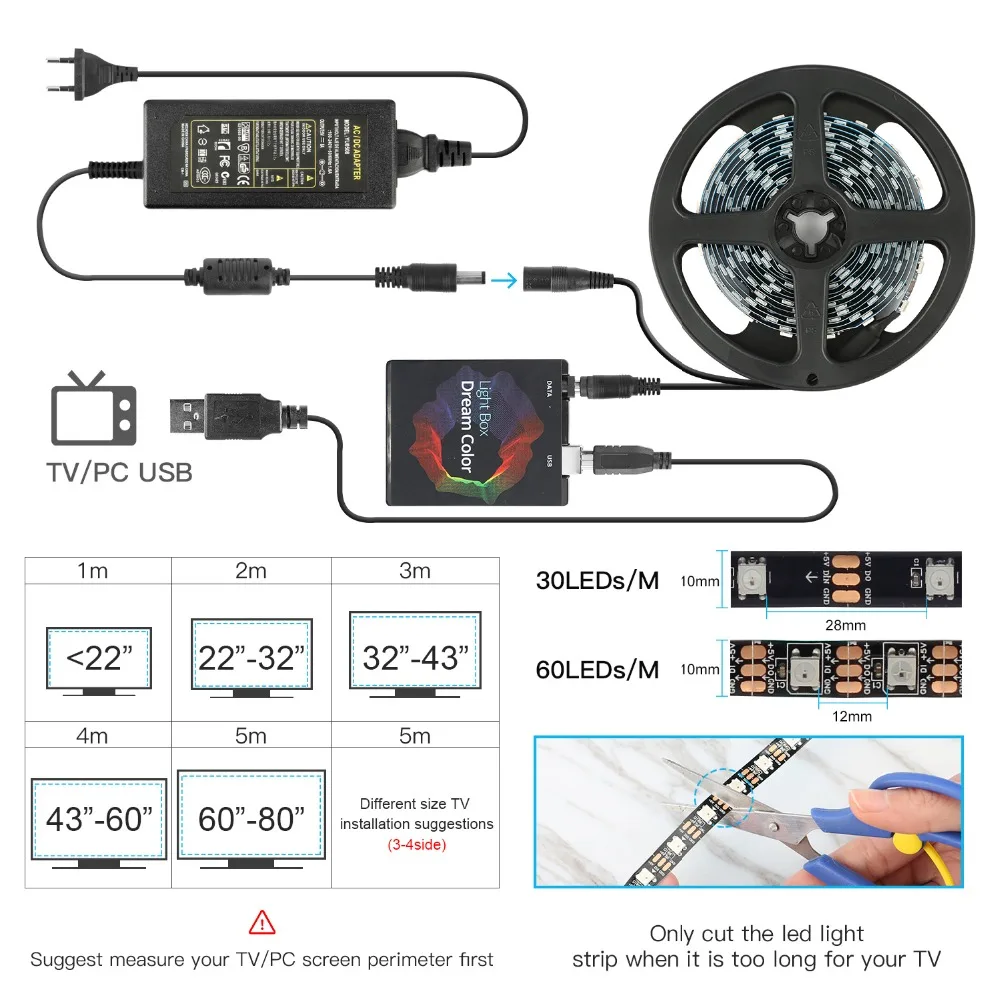
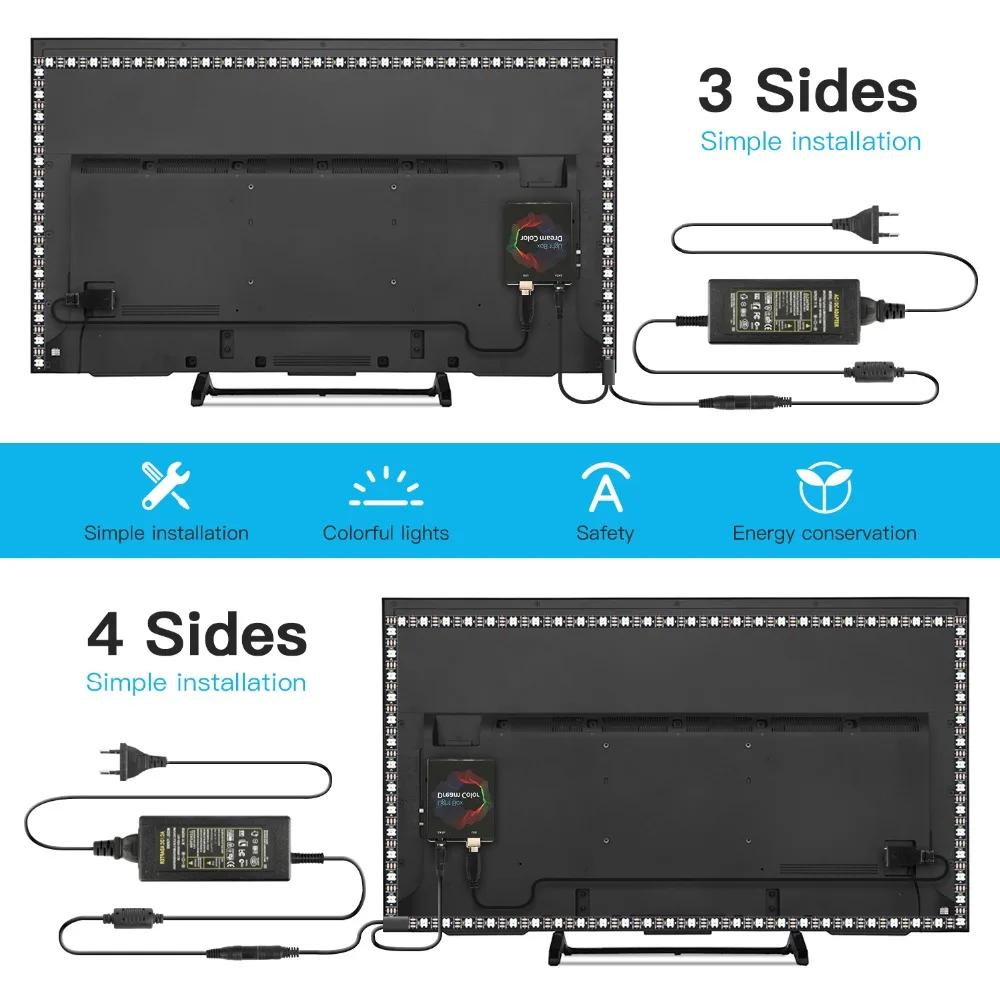
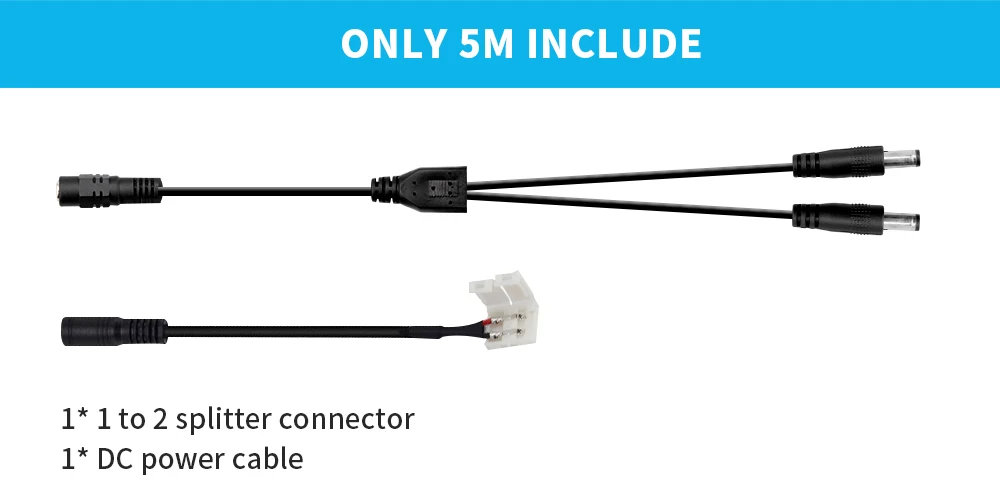

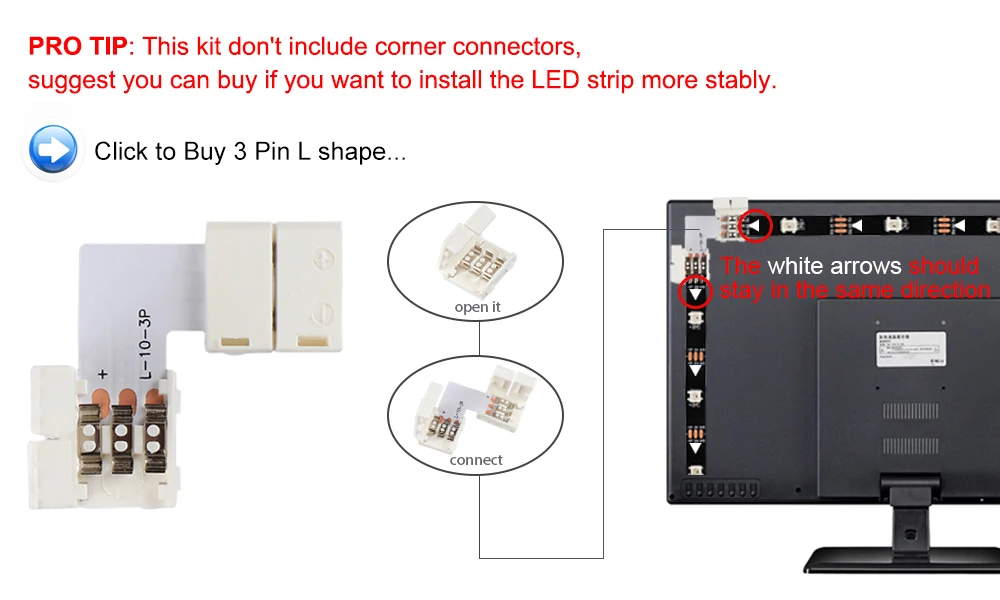
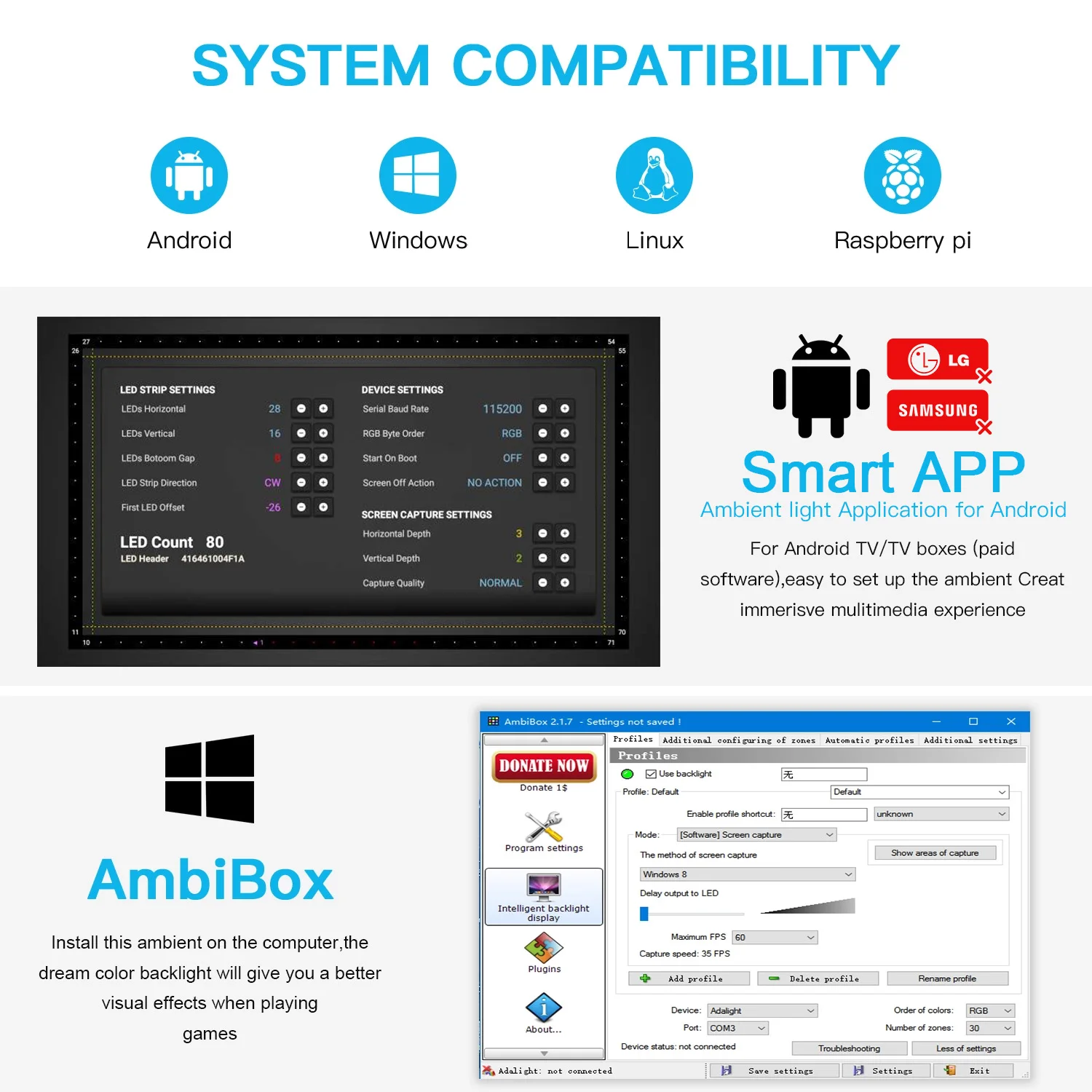

Connect everything well and set up capture area in APP first. If everything is ok after testing, then you can stick the LED strip on the TV and cut strip by demand.
Step 1: Install LED strip light on your TV
Step 2:Purchasing a Paid Software on Google Play: Ambient light Application for Android
Note: Android TV/TV boxes(Android 5.1 or above)(Xiaomi TV/BOX not recommend)
Base application settings guide: http://ambilight.tender-complex.ru/en/software_setup/
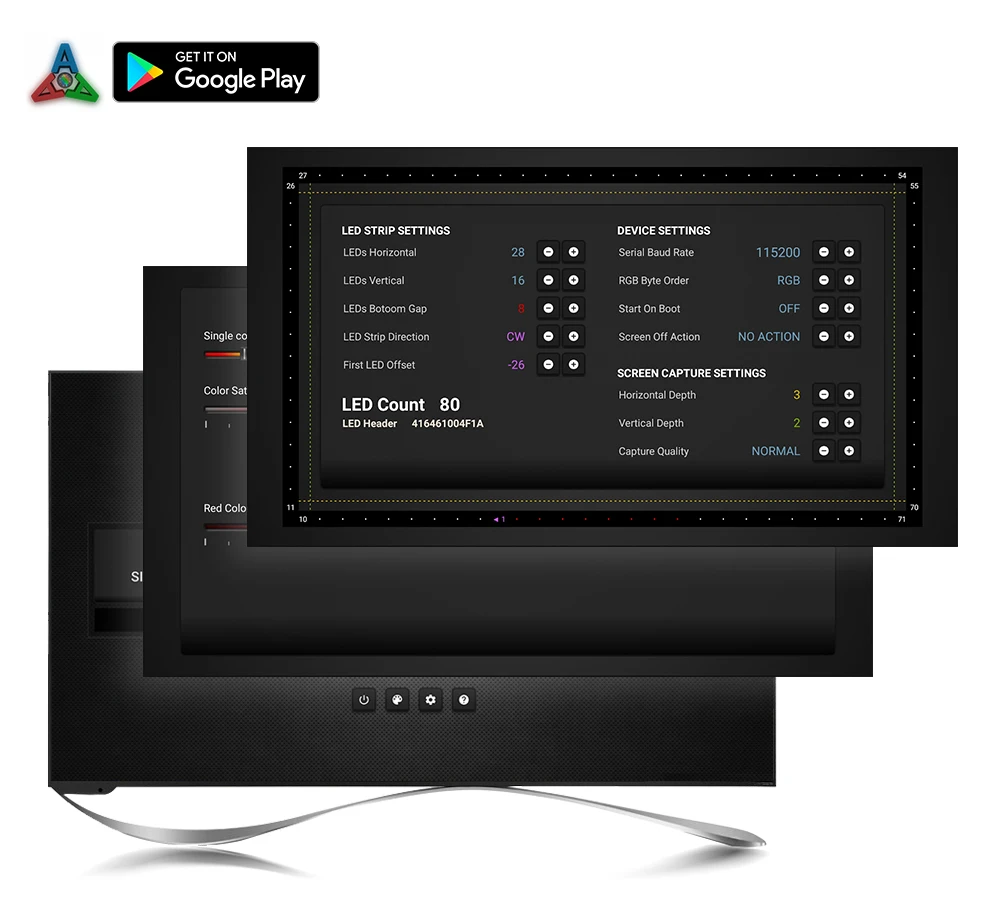


Connect everything well and set up capture area in Ambibox first. If everything is ok after testing, then you can stick the LED strip on the monitor and cut strip by demand.
Install and Ambibox set up guide: https://youtu.be/UAUyKvEt7aE
Step 1: Install LED light on your monitor
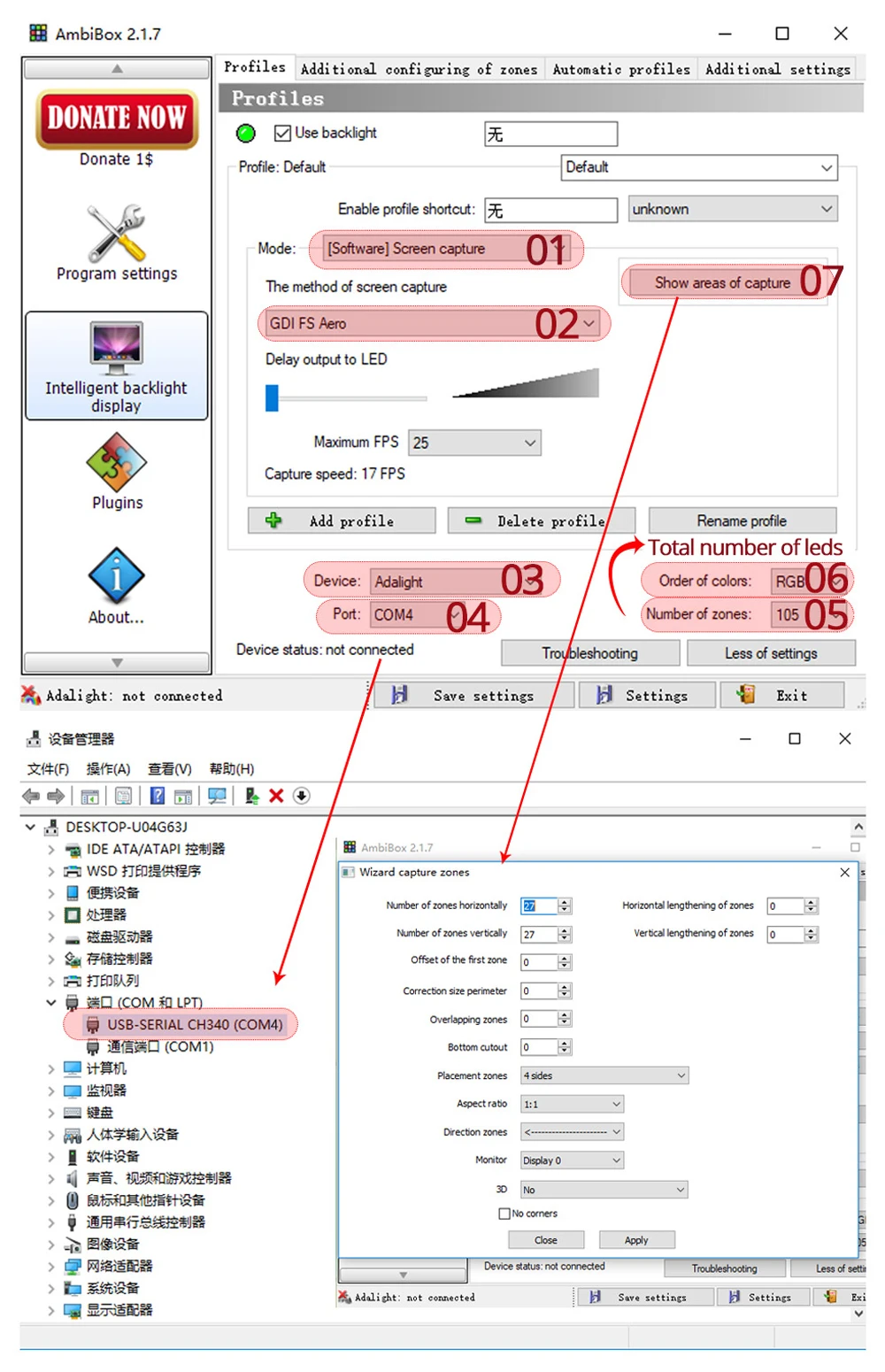
Step 2: Setting up the Ambibox Capture Software
2.1. Ambibox software(Shareware);
Download link: https://drive.google.com/file/d/1aR1z_wcBfGw2ixTBYI01CshD_q8RMxxc/view?usp=sharing
2.2. Run the Ambibox software, when installing, it recommends to use PlayClaw, I wouldn't recommend to using it.
2.3. Select device and set this as "Adalight", under menu of "Intelligent backlight display", select the Port and the COM Port that your device has been detected. If select correctly, you can see Device Status: Connected, also down the bottom left it will say Adalight: connected. If cannot find USB driver/COM port, please download USB CH340: https://drive.google.com/file/d/1GS5FrjN5620I_RKJMOe5IAGNSqlke9jC/view?usp=sharing
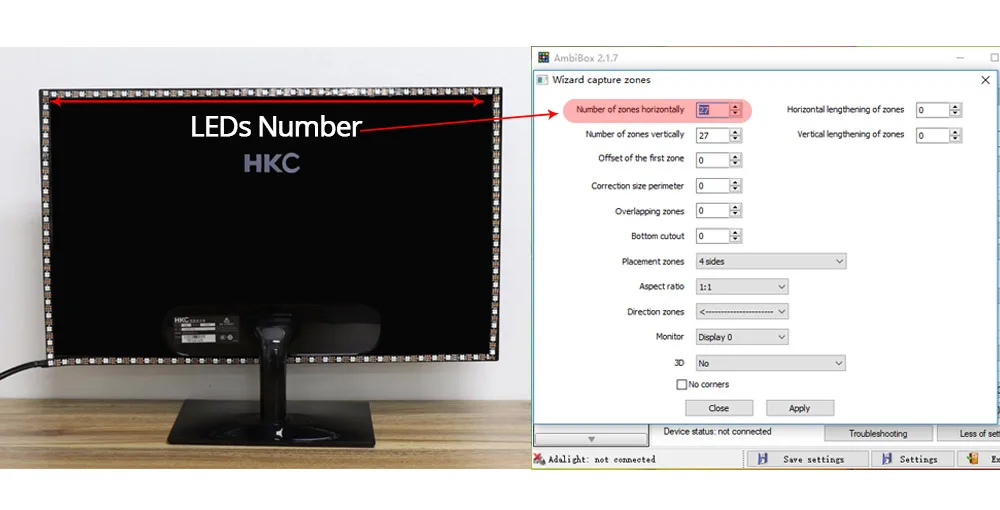
2.4. Once you setted up, you can select the "Wizard capture zones" which will automatically generate all capture zones for you.
PRO TIPS: if you find your colours are washing out or seem very white rather than colourful, adjust your gamma settings, if you getting a white backlight on a pure black screen, increase the size of sample zones, It will take a bit of fine tuning but worth it!

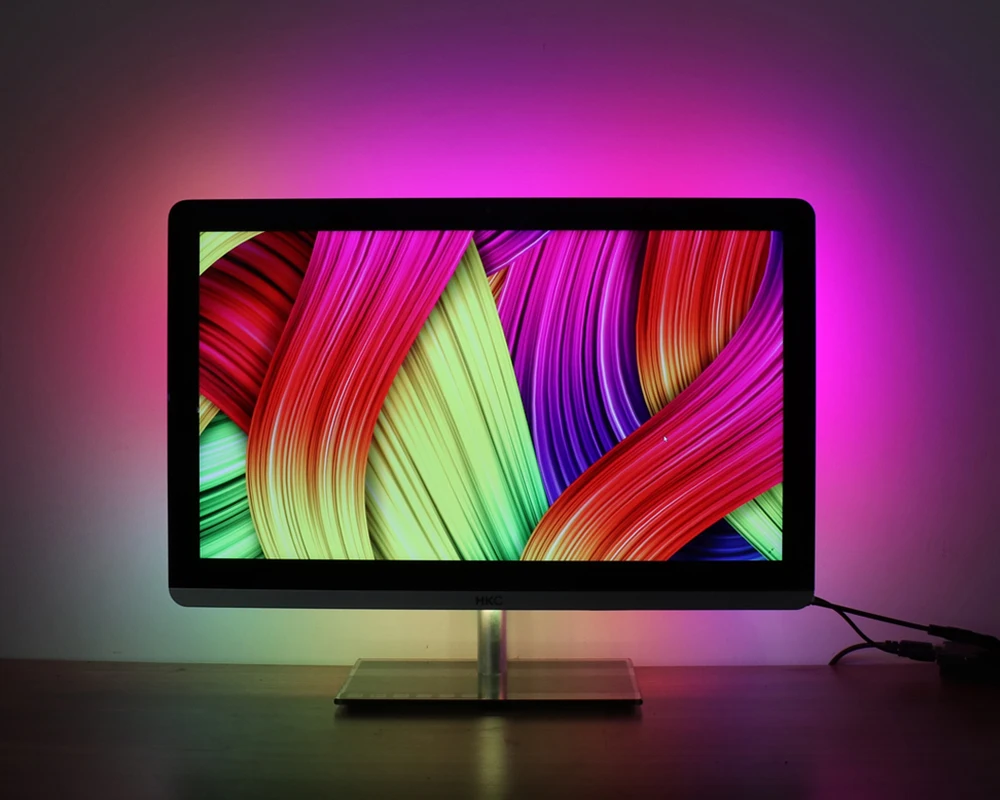
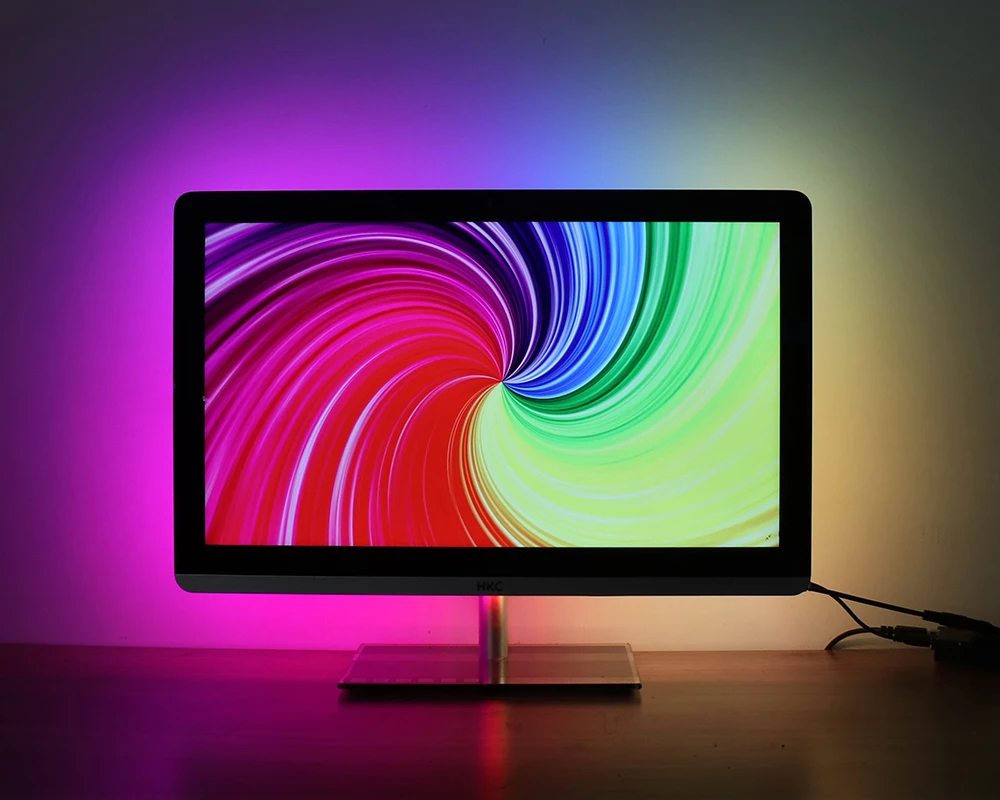
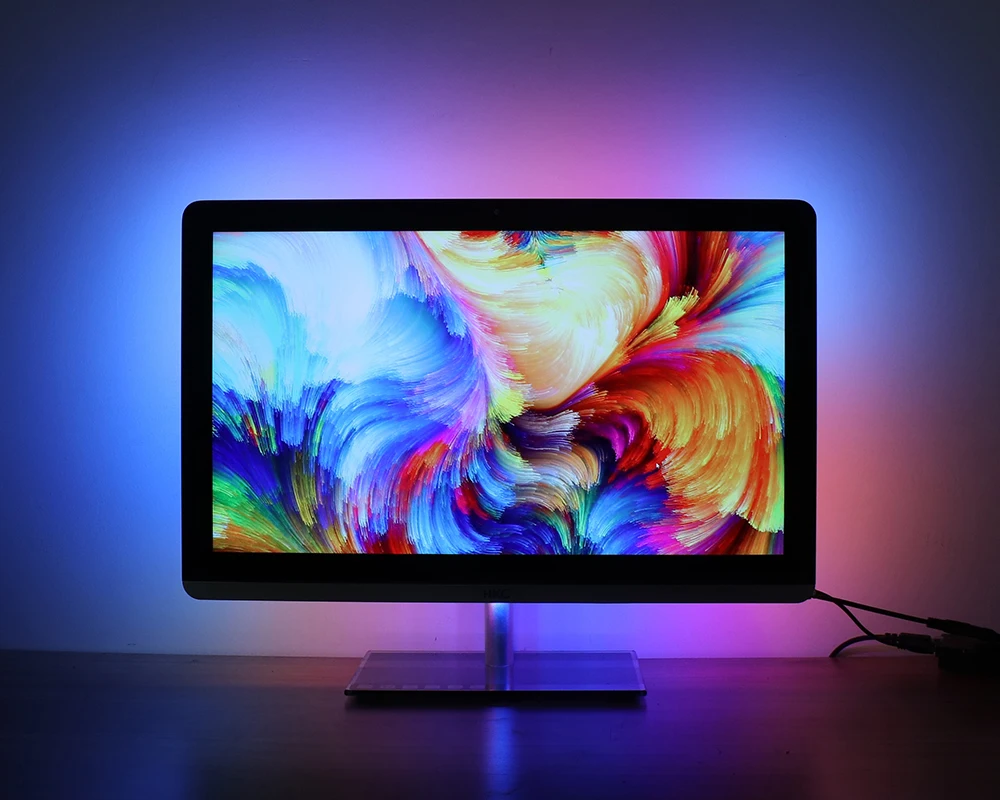
The software analyses what you currently have on the screen, be it a movie, a game, or
anything else, it'll sends this information to the device which in turn lightens the surface
behind the screen with matching colours using the RGB-LEDs available within the device.


Free Shipping Over $199
- Standard Shipping: 7-15 business days worldwide
- Express Shipping: 3-7 business days (UPS / FedEx)
- Free Shipping: Orders over $199 qualify automatically
- Tracking: Full tracking number provided for all orders
30-Day Return Policy
- Returns: 30-day hassle-free return window
- Condition: Items must be unused and in original packaging
- Refund: Full refund processed within 3-5 business days
Why Choose Us?
- Factory Direct: ISO/TS 16949 certified manufacturer
- Quality: 100% electrical continuity tested before shipment
- Experience: 15+ years in automotive connector industry
- Support: Professional technical support available
You may also like
Subscribe to our emails
Be the first to know about new collections and special offers.